01
Extract The Data
Add a GoPro clip and let Shred Scopes read the GPS telemetry stream.
Add a GoPro clip and let Shred Scopes read the GPS telemetry stream.
Start from a collection template or build a custom overlay in the editor.
Save a transparent overlay or render it directly on top of the source clip.
Start off every session by adding your GoPro clips. Shred Scopes will automatically pull the GPS data attached to the video, and prepare it for visualization.
Not sure if your GoPro clip has GPS data in it? You can check to see here: Test GoPro Footage For GPS Telemetry
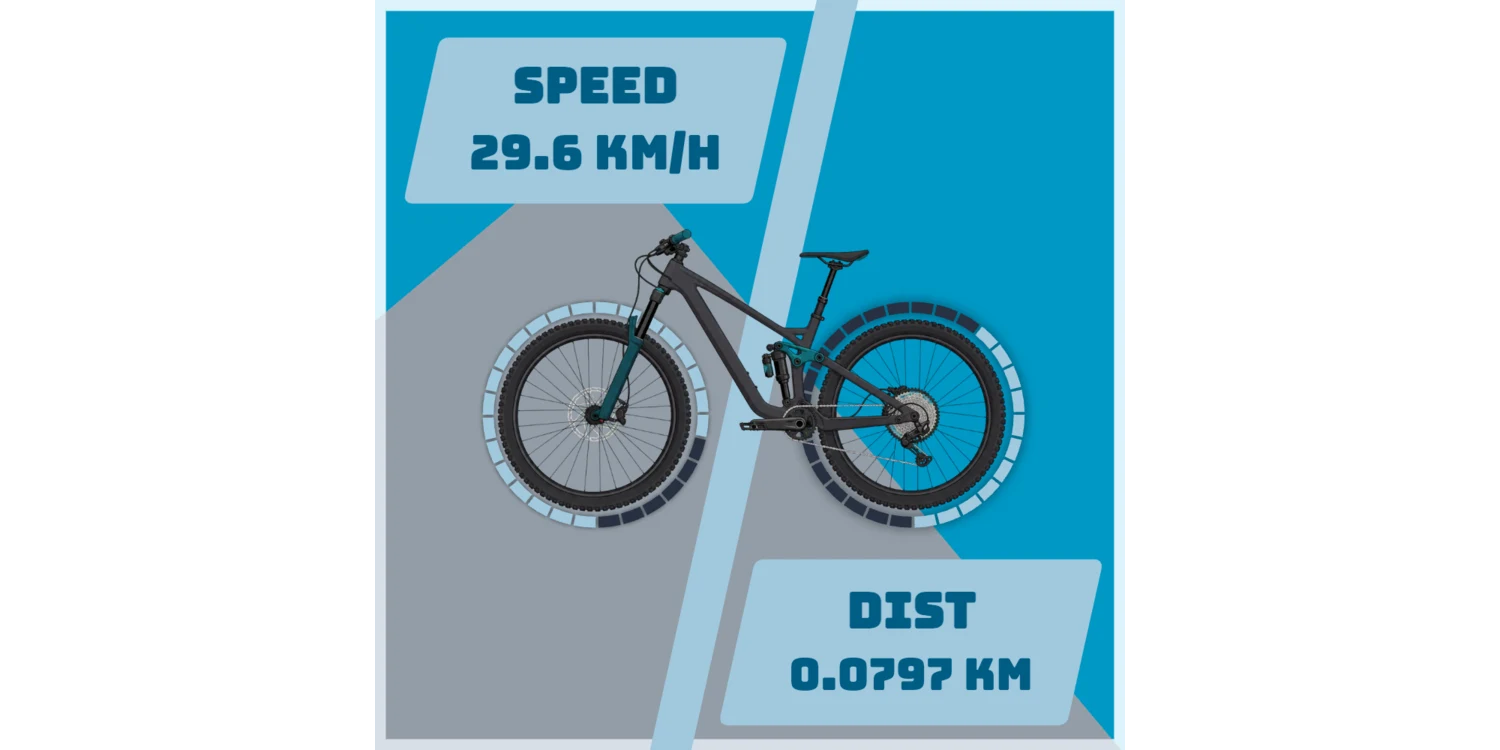
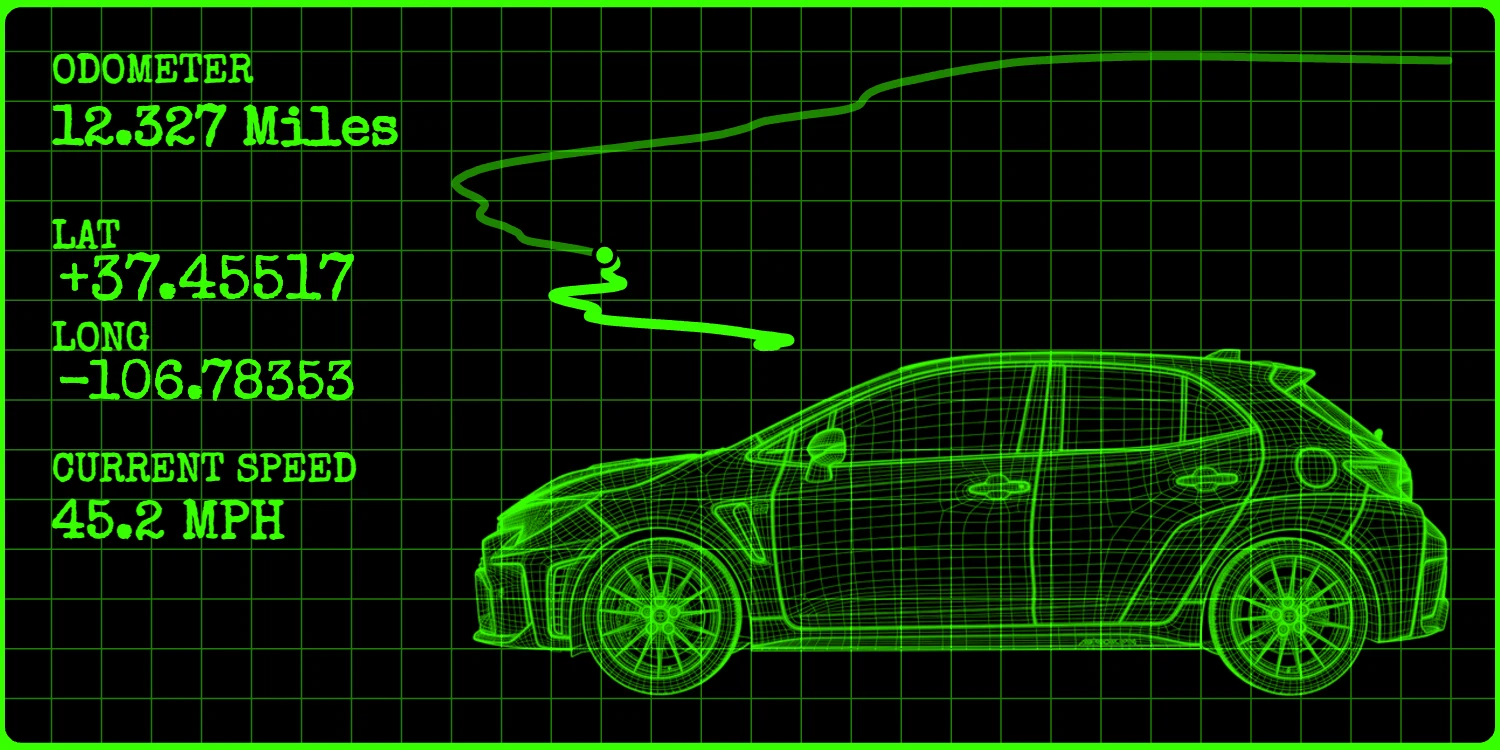
Choose a template you want to use to create your Overlay.
You can select a pre-made template from one of the Shred Scopes Collections. These templates are ready for export immediately, and make rendering out videos quick and easy.
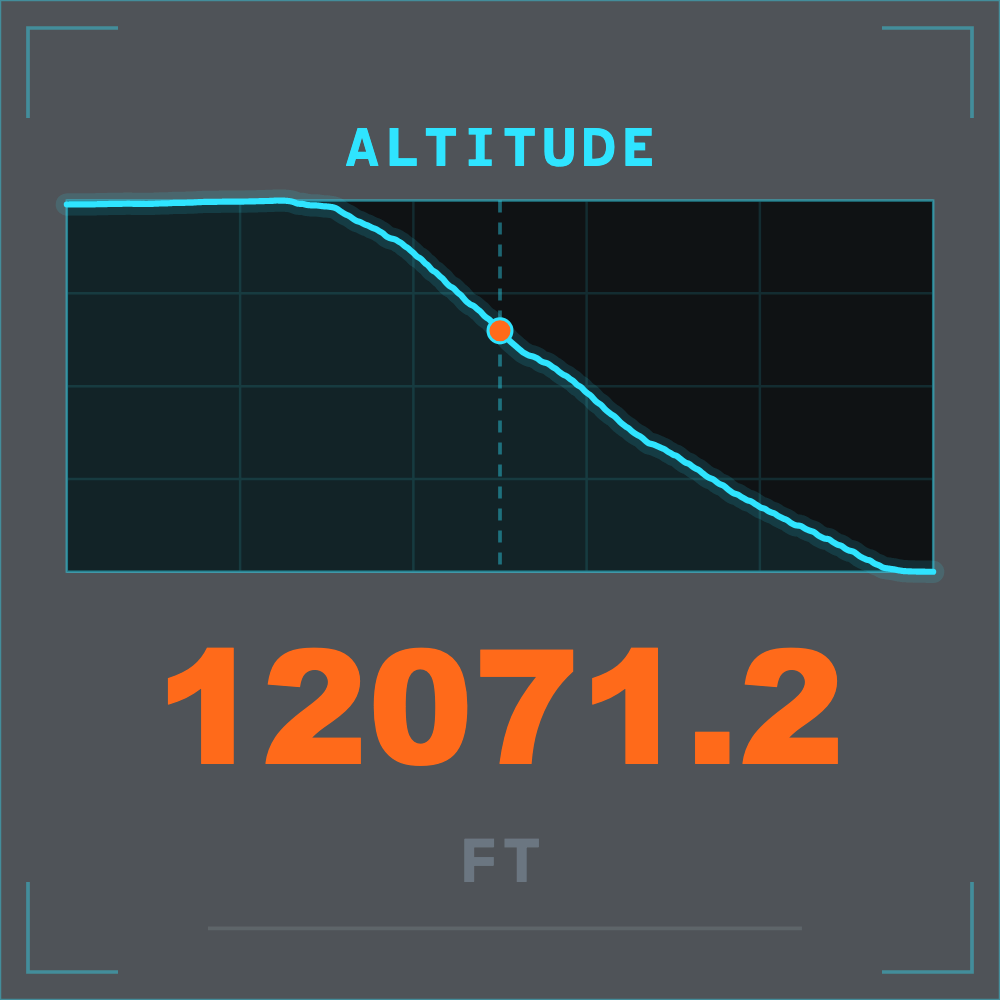
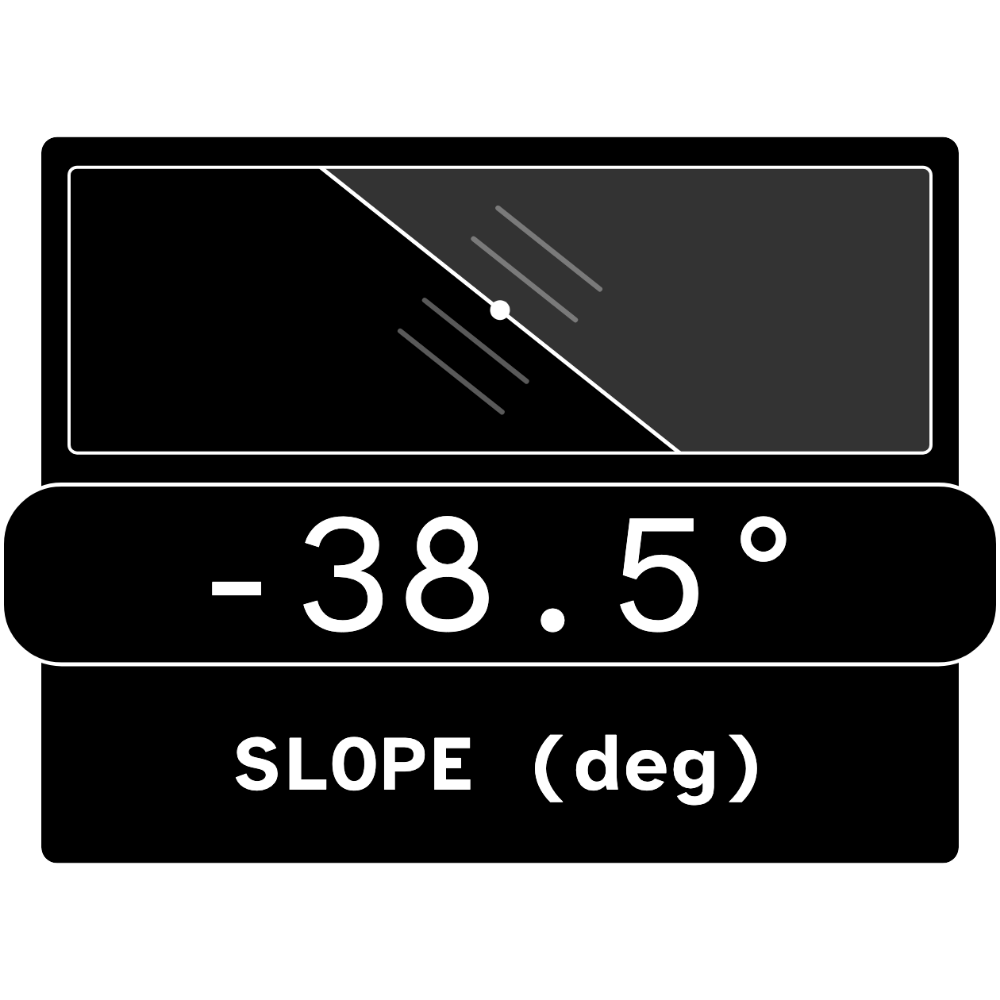
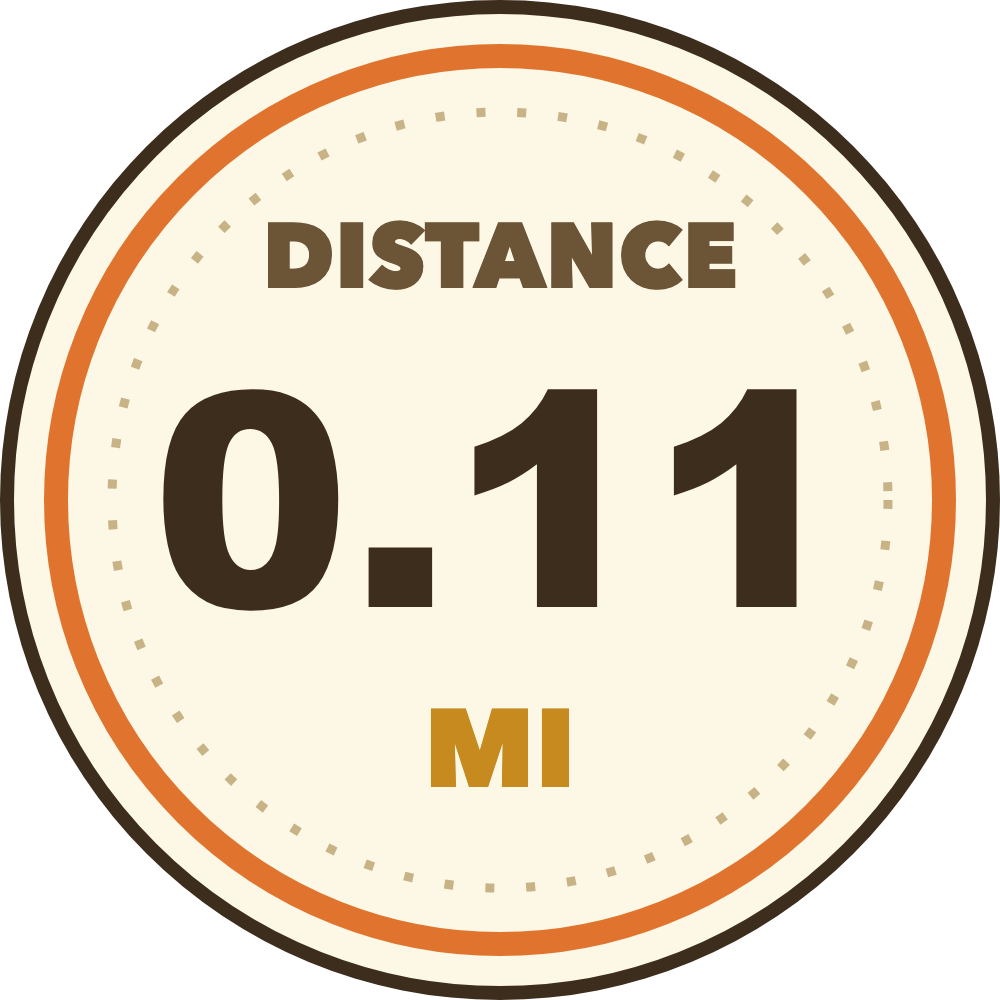
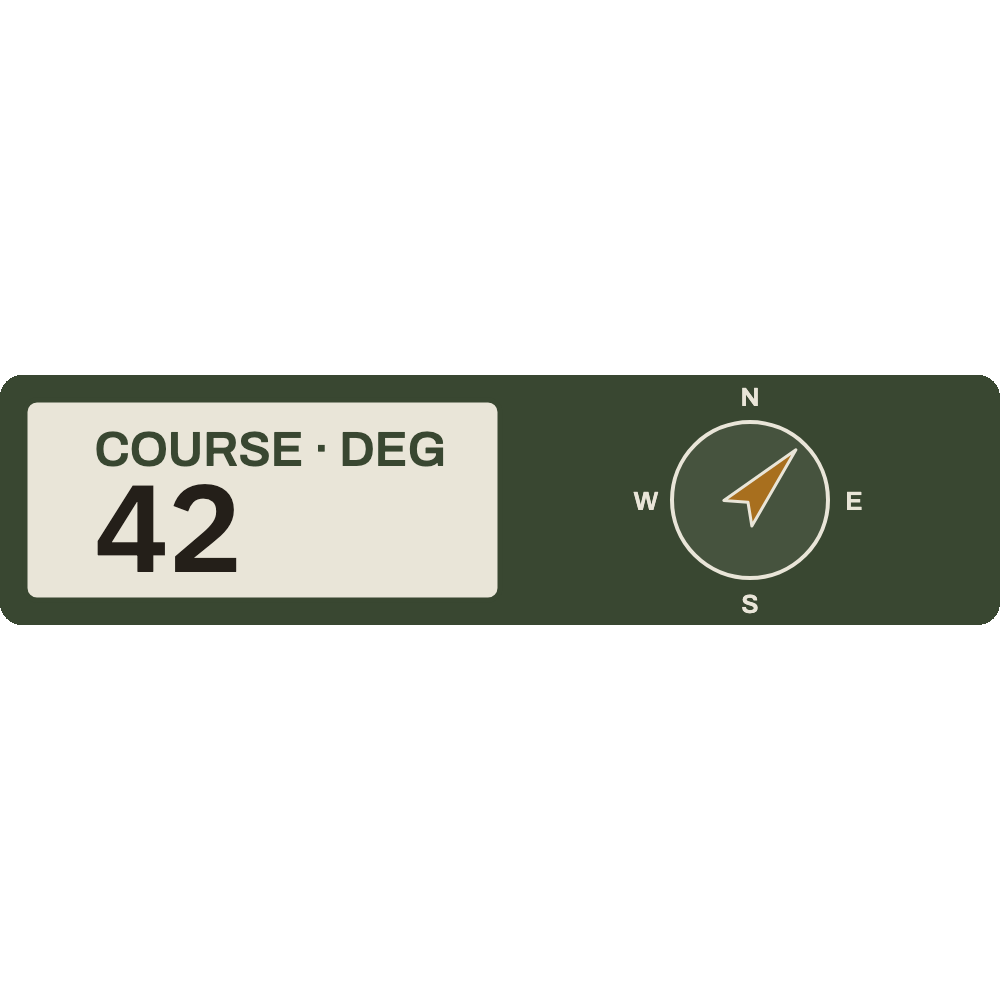
You can create custom templates using the richly featured Template Editor. All built-in templates can be edited to your tastes, or you can build new templates from the ground up for completely unique overlays.
Once you're ready, click Export to save the video to your computer. You can export your overlays in two ways.
You can export out just the raw overlay so you can use it in your video editor. Videos can be exported with a transparent background, or a solid color you can key out.
If your GoPro video is ready to publish as-is, you can export your overlays directly onto the GoPro video.
Every step above happens the Shred Scopes Studio: a template editor & video exporter that runs in your browser. It reads the telemetry from your clips, previews your overlay against that data as you work, and exports your finished videos. Nothing to install, and your footage never leaves your machine.

The canvas is driven by your clip's actual telemetry. Scrub the timeline and every readout, gauge, and graph moves exactly as it will in the final export.
Overlays are stacks of layers: shapes, text, images, and data-driven graphics. Add, remove, position, style, and reorder them however you want.
Bind readouts, gauges, graphs, and meters to any telemetry stream. Convert data to your preferred units, imperial or metric, and smooth noisy data for cleaner results.
Use the bundled font set or bring your own. Full control over fill, stroke, opacity, and blend modes.
Open any built-in template and change what you want, or start from a blank canvas. Save your own templates to your account to reuse them later
Export overlays as alpha-supported .MOV files for your video editor, or render one or more overlays onto the source clip as an .MP4 file
Unified engine // The Studio previews and exports with the same renderer. What you see on the canvas is what gets exported
A day of filming rarely produces only one clip. Batch Mode runs the same pipeline across a multiple clips allowing you to create multiple videos from the same overlay template in one step.

Adding multiple clips to the Studio will activate Batch Mode. Choose whether to batch export transparent overlay videos from one template or batch export one or more overlays onto each source clip in the batch.
When you export, progress is tracked per file, and one bad clip never sinks the run. Failures are marked, skipped, and retriable.
Note // Batch export requires Chrome, Edge, Brave, Opera, or other Chromium-based browsers.
Get familiar and play around with the Studio, template workflow, and other features of browser-based render engine.
No videos yet? No problem. You can load one of our sample clips in the editor to see how everything works.
Activate Full Access to unlock the Studio's full capabilities to start exporting videos, saving custom templates, using custom images, activate batch mode, and more.